
My Library Dashboard
😩 Before: “My Papers Are Everywhere and I Can’t Keep Track”
Section titled “😩 Before: “My Papers Are Everywhere and I Can’t Keep Track””If you’ve ever felt overwhelmed searching “how to organize PDF papers,”
“best way to organize research papers,”
you’re in familiar territory.
Tabs everywhere.
Folders inside folders.
Downloaded PDFs you can’t remember.
No clear sense of progress.
Managing your references becomes a bigger job than reading them.
🔄 Shift: The My Library Dashboard Brings Order to Research Chaos
Section titled “🔄 Shift: The My Library Dashboard Brings Order to Research Chaos”This dashboard is your home base — a calm, structured space where every paper, highlight, note, and insight comes together without switching tools or tabs.
🌤️ After: Your Research Library Finally Works With You
Section titled “🌤️ After: Your Research Library Finally Works With You”You land here and instantly see:
- 📄 All your saved papers
- 📁 Your collections
- ⭐ Favorites
- 🧭 Search + filters
- 📊 Progress indicators (AI Summary, Notes, Highlights)
It’s simple.
It’s organized.
It makes sense.
🚀 Empowerment: Your Workflow Becomes Predictable, Structured, and Fast
Section titled “🚀 Empowerment: Your Workflow Becomes Predictable, Structured, and Fast”The dashboard doesn’t just store your papers —
it guides your workflow, helps you stay focused, and gives you
the momentum researchers need when reading dozens (or hundreds) of papers.
No more:
- ❌ hunting for PDFs
- ❌ broken folder structures
- ❌ manual organization
- ❌ losing time switching tools
You get:
- ✅ A library that auto-saves every paper
- ✅ Collections that structure your research journey
- ✅ A clear overview of what you’ve done and what’s next
- ✅ A workflow designed for academic research, not chaos
No more:
- ❌ digging through random folders
- ❌ losing track of what you’ve already added
- ❌ breaking focus to manage files
Instead, you get:
- ✅ A library that grows with your research
- ✅ A smooth research workflow that stays in one place
- ✅ A sense of control over your reading and references
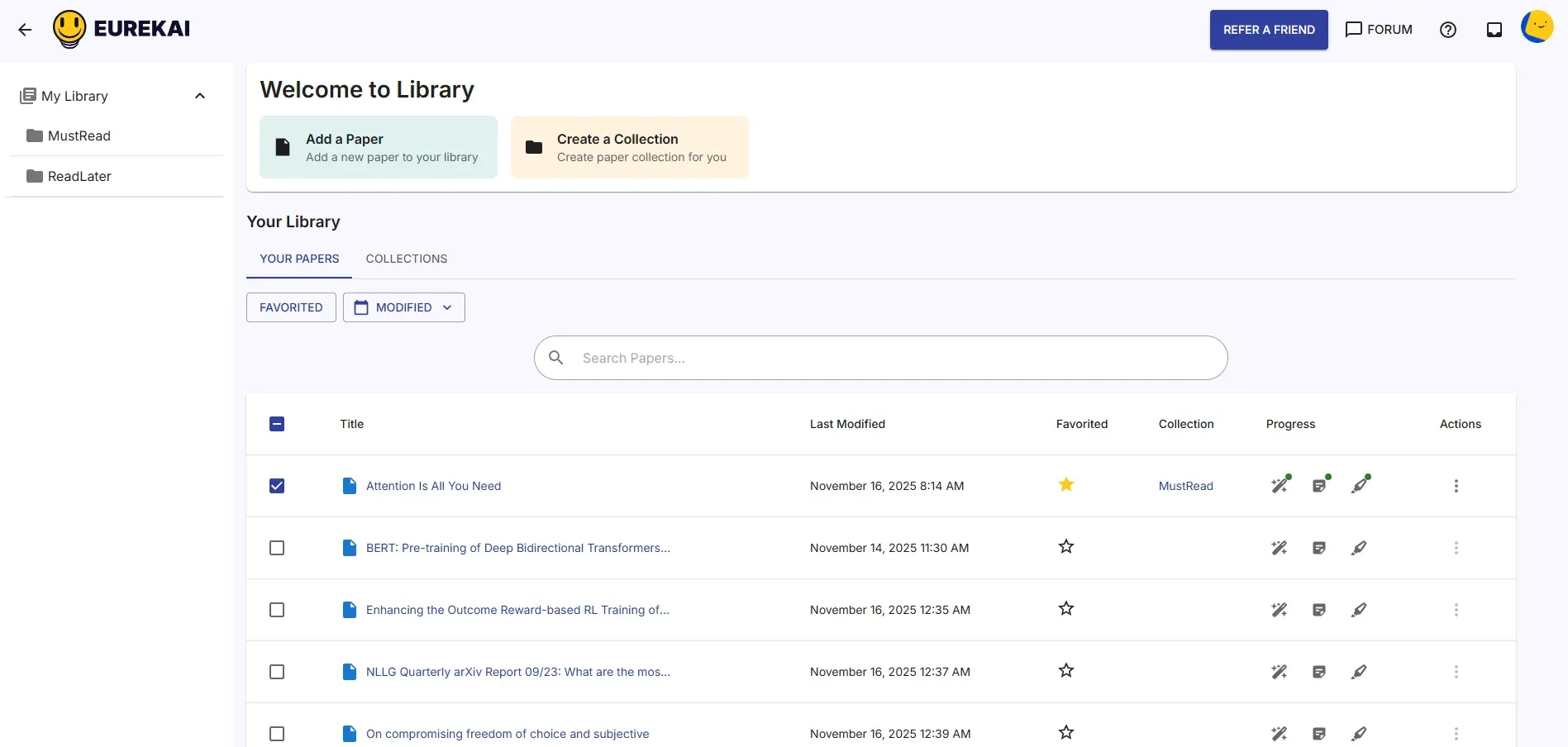
⭐ Welcome to Your Library
Section titled “⭐ Welcome to Your Library”📁 Create a Collection
Section titled “📁 Create a Collection”Click the Create a Collection button on your dashboard.

When you click the button:
- A modal will appear for entering your collection name.
- ⚠️ Use a name without spaces.
Example:MustReadinstead ofMust Read. - Click Create to confirm.
- Your new collection will appear:
- in the sidebar, and
- inside the Collections tab.
📄 Your Papers
Section titled “📄 Your Papers”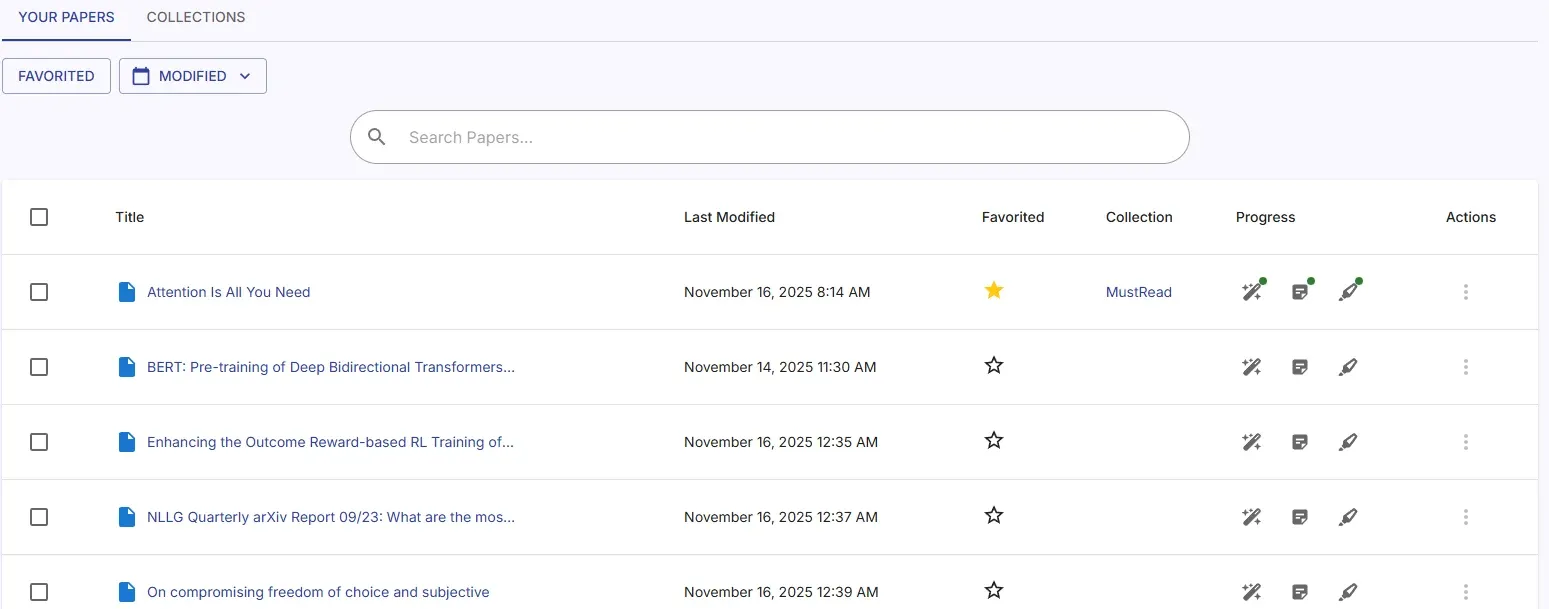
This section contains every paper that auto-saves when you add a paper to EurekAI.
Here’s what you can do:
- 🔍 Search your papers
- 🎯 Filter by Favorited or Modified date
- 📊 See your progress indicators:
- Has AI Summary – You’ve asked the AI questions
- Has Notes – You’ve added reading notes
- Has Highlights – You’ve marked important passages
📂 Move a Paper to a Collection
Section titled “📂 Move a Paper to a Collection”- Select the paper (click the checkbox on the left).
- Go to the Actions column → click the three-dots icon.
- Select Move from the dropdown.
- A modal appears with your existing collections.
- Choose a collection and click Move.
🗑️ Delete a Paper From Your Library
Section titled “🗑️ Delete a Paper From Your Library”Deleting a paper is permanent and cannot be undone.
Proceed carefully.
- Select the paper via the checkbox.
- Click the three-dots icon in the Actions column.
- Select Delete.
- Confirm in the modal.
📘 Open a Paper From Your Library
Section titled “📘 Open a Paper From Your Library”Simply click the paper title.
You will be redirected to the Paper Details screen.
If you have saved highlights, notes, AI chats, or similar-paper insights,
you’ll find them all on that page.