
Seed Paper Insights
🌧️ Before: Managing Your Research Workflow Shouldn’t Feel This Hard
Section titled “🌧️ Before: Managing Your Research Workflow Shouldn’t Feel This Hard”If you’ve ever Googled “how to manage research workflow”,
“research workflow for PhD students”,
or even “too many papers to read help” — you’re not alone.
Most researchers quietly struggle with:
- reading papers efficiently,
- finding related research papers,
- organizing insights,
- and keeping overwhelm under control.
The problem isn’t your ability — it’s the fragmented tools.
🔄 Shift: Seed Paper Insights Brings Your Entire Research Flow Together
Section titled “🔄 Shift: Seed Paper Insights Brings Your Entire Research Flow Together”Instead of switching between “AI tools to read research papers,” separate note apps, and chaotic PDFs — this space wraps summaries, citations, highlights, similar papers, and discussions around your seed paper.
🌤️ After: Your Paper Becomes Understandable, Searchable, and Actionable
Section titled “🌤️ After: Your Paper Becomes Understandable, Searchable, and Actionable”You get clarity.
You get momentum.
You get what every PhD student hopes for when searching “summarize research paper AI” — an actual partner that reads with you, not at you.
🚀 Empowerment: Insight Becomes the Default Outcome
Section titled “🚀 Empowerment: Insight Becomes the Default Outcome”Your literature review stops being a maze of tabs.
You move from “paper discovery is a mess” to
“I finally know where to go next.”
1. AI Summary
Section titled “1. AI Summary”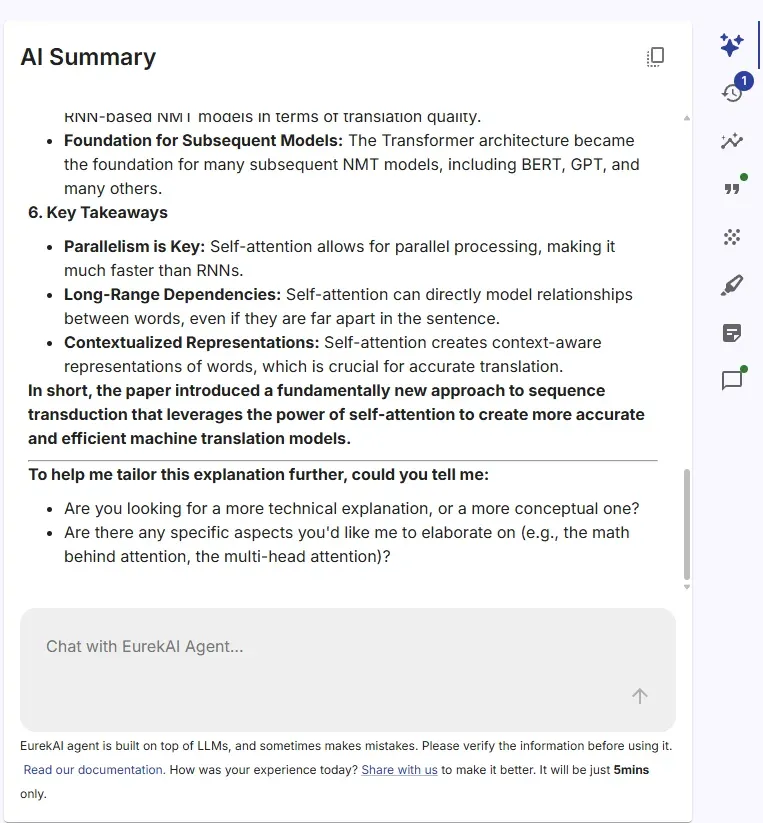
The AI Summary tab allows you to ask any question related to the seed paper.
EurekAI reads the entire paper and answers your questions using its understanding of the paper’s content.
2. Recent papers
Section titled “2. Recent papers”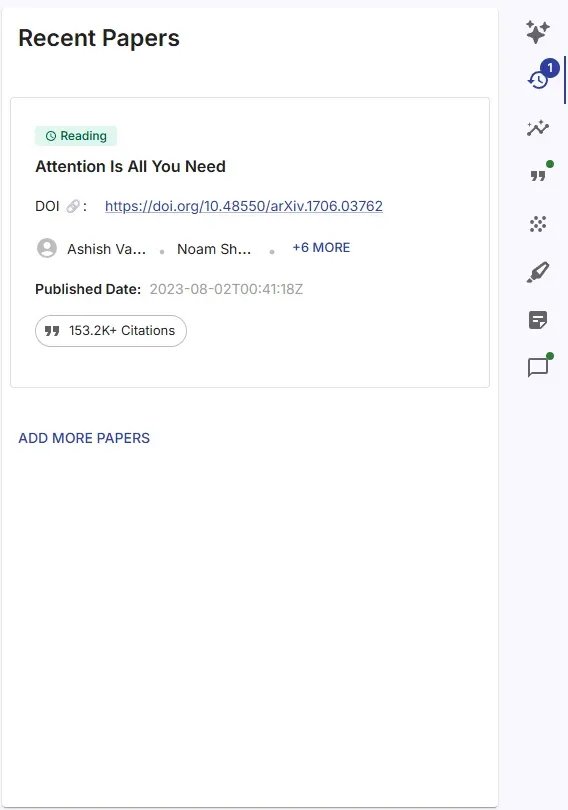
The Recent Papers tab shows all the papers you’ve recently added to EurekAI.
- Click any paper to open it in the PDF viewer on the left.
- You can also add new papers by clicking Add More Papers.
3. Paper details
Section titled “3. Paper details”
The Paper Details tab shows the Abstract and Author information of your seed paper.
This helps you understand the core idea of the paper quickly—without reading the entire PDF.
4. Citations
Section titled “4. Citations”
The Citations tab lists all papers that your seed paper cites.
It gives you a quick way to explore the foundations and prior work behind the research.
5. Similar papers
Section titled “5. Similar papers”
The Similar Papers tab helps you continue your literature review by exploring papers that are closely related to your seed paper.
EurekAI uses the euRank algorithm to estimate how similar each paper is.
You’ll see a score on the top-right of each card.
euRank interpretation:
- 1–5 : Highly similar
- 6–10 : Quite similar
- 11–15 : Somewhat related
- 16–20 : Barely related
You can add any similar paper to your library by clicking the Add To Library button.
6. Paper Highlights
Section titled “6. Paper Highlights”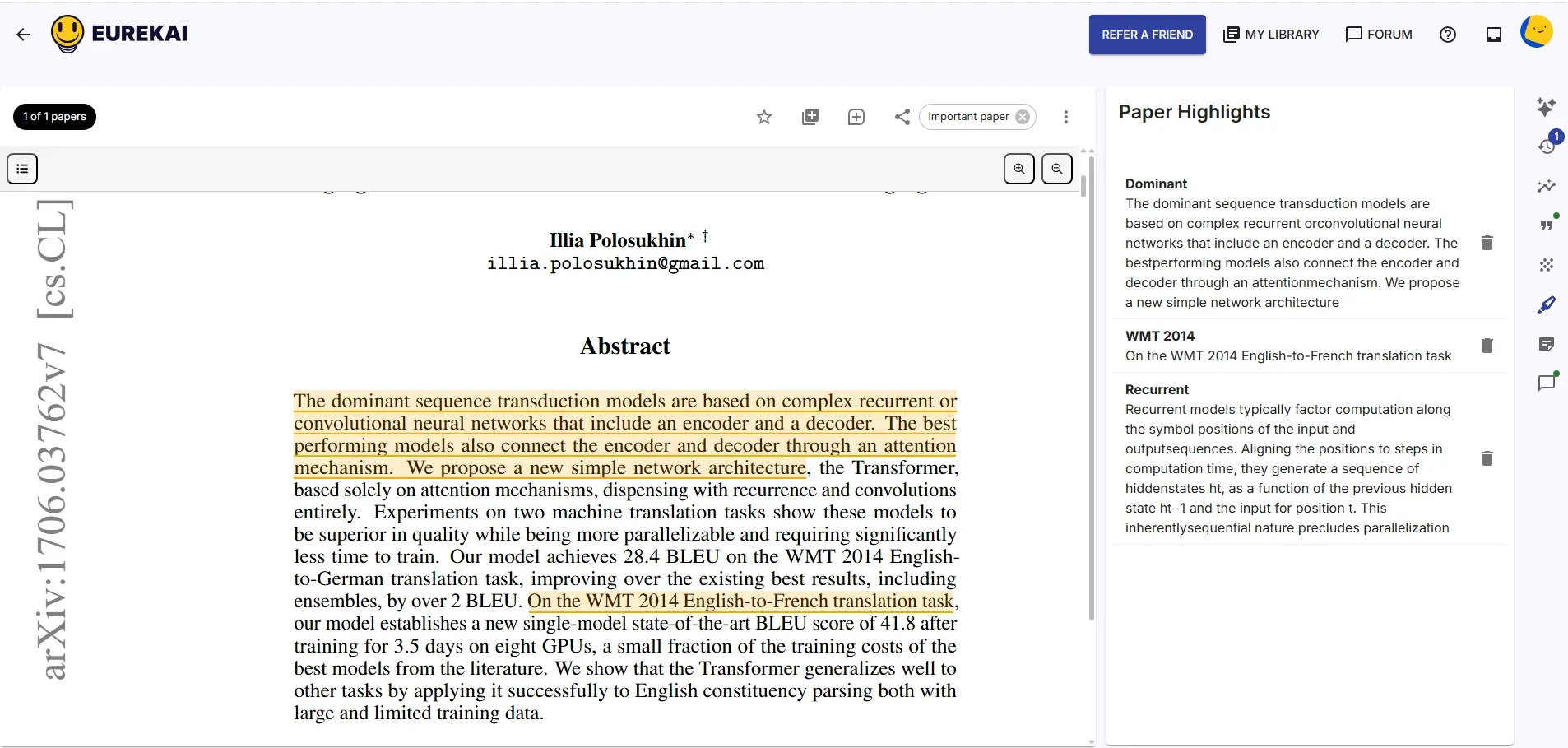

You can highlight important parts of the seed paper as you read:
- Add highlights anytime while reading.
- All highlights appear in the Paper Highlights panel.
- You can delete highlights whenever you need.
- Highlights are auto-saved, so when you return to this paper in the future, your highlights will still be there.
Follow the example below to see how to add highlights:
7. Notes
Section titled “7. Notes”The Notes tab helps you capture your thoughts as you read the paper.
- Add notes on any section of the paper.
- Notes support Markdown formatting for clean, structured writing.
- Press / to quickly choose formatting options.
- Math equations are supported as well.
- Notes are auto-saved and stay linked to the paper.
- When you revisit the paper later, all your notes will still be there.
8. Discussions
Section titled “8. Discussions”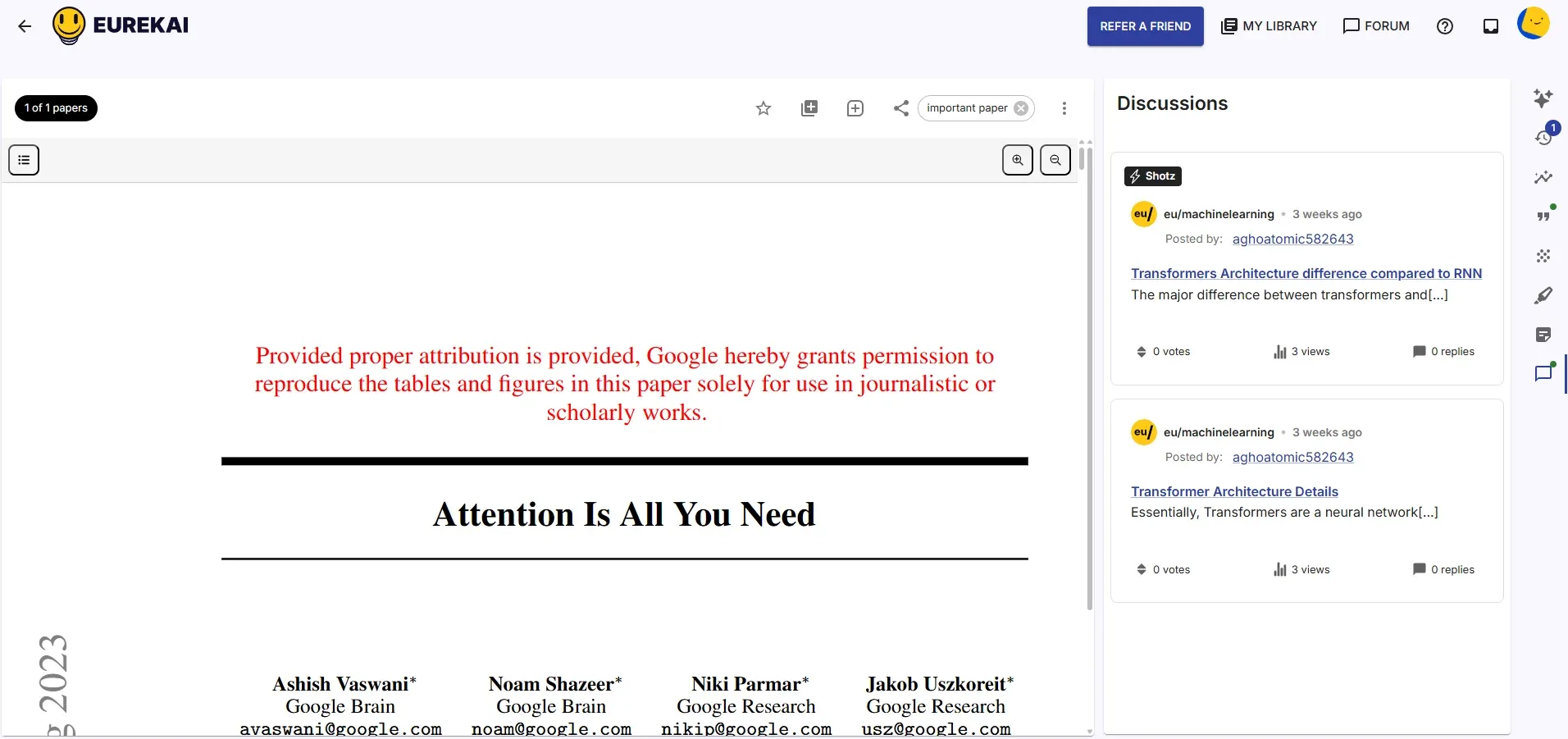
The Discussions tab shows all community conversations related to this seed paper.
- If researchers on EurekAI have discussed this paper, the discussions will appear here.
- Click any discussion to view the full conversation.
- You’ll be redirected to the corresponding discussion page in the EurekAI Forum.